Catalog import starter template
If you have many products to add to your GoDaddy Payments product catalog, you can add them to a .csv file and then import them in bulk. This is especially useful if you have exported the data from another platform or already have it listed on your local computer.
To ensure that all product parameters are imported correctly, you must download and correctly fill in our import template.
Download the template
- Sign in to your In Person Overview page (use your GoDaddy username and password).
- In the left-nav, select Catalog and ensure Products is selected in the top menu.
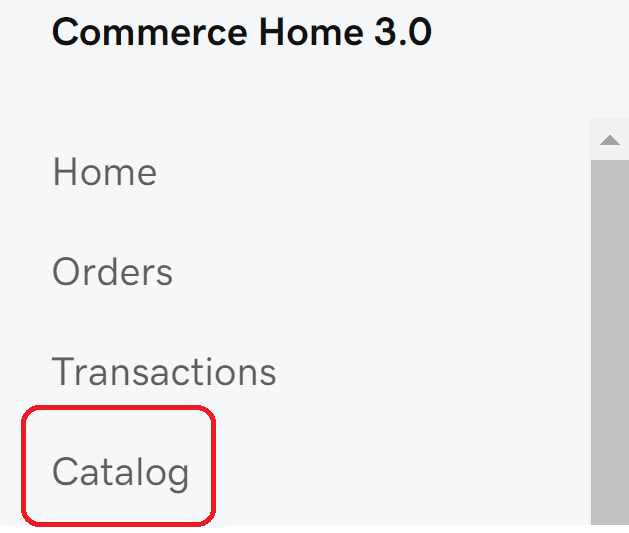 Note: If you do not see this option in your left-nav, follow these steps to add products in the original GoDaddy Payments dashboard.
 - Select Import.
- To download a .csv file, select Get a GoDaddy Template.
After you fill out the fields for each product and save the file, you can use it to bulk import or edit products in your GoDaddy Payments Catalog. The template includes columns for product details to help organize and customize your products.
Note: The Smart Terminal can display up to 5000 products in the on-device catalog. If you have more than 1000 products, make sure to include a UPC value for your products so you can add them to orders with the built-in barcode scanner.
Metrics and definitions
Here's the breakdown of the template metrics with definitions so you can fill them in correctly:
- SKU: Stock keeping unit is a unique, alphanumeric identifier you assign to products and variants (such as different sizes or colors) to track inventory internally. Unlike universal barcodes such as UPCs, SKUs are created by you for your business to improve warehouse efficiency. When adding a new product, we will autogenerate the SKU value from the product name and this field should be left blank. If you're updating the existing product, filling out this field is not mandatory, but you must fill in the PRODUCT ID field to ensure the correct product will be updated.
- EAN: European article number, often also referred to as GTIN (global trade number), is a standardized barcode identifier used worldwide to identify products. EANs help retailers and systems recognize products at checkout and across supply chains and are managed globally by GS1.
- UPC: Standardized 12-digit barcode used in North America to track, price, and identify retail products, allowing scanners to recognize the item and its manufacturer.
- GTIN: Global trade number, also referred to as EAN (see above)
- ISBN: International standard book number is a 13-digit code used to identify books. ISBNs help bookstores, libraries, and retailers track inventory, manage sales, and catalog specific editions and formats of a title. Add the values only if you sell books.
- TYPE: By default, products are marked as PHYSICAL. If you're adding or updating a digital product, you should mark it as DIGITAL.
- NAME: Official and descriptive name of your product that can include your brand name and keywords (like women's cotton crop-top or large ceramic mug with red handle). For your convenience, we recommend using the same name across all variants with a name followed by a value (for example, Shirt Red/Small, Shirt R-S).
- PRODUCT ID: If you're uploading new products, leave this field blank, and we'll autogenerate the value. If you're updating existing products, this field is required so we can update the correct product.
- VARIANT GROUP ID: The PRODUCT ID of the parent product for variant products. Each variant product should be added in its own row, with the VARIANT GROUP ID value equal to the PRODUCT ID of the parent product.
- SHORTCODE: Code with up to 5 characters that you add for products without images. This setting is optional, and we autogenerate this value.
- MANUFACTURER: Name of the company that manufactured the product.
- MODEL NUMBER: Serial number of that particular model.
- MSRP: A manufacturer’s suggested retail price is the price a manufacturer recommends for a product. Often called the list price or sticker price, MSRP helps keep pricing consistent across sellers and typically reflects production costs and expected retailer margins.
- BRAND: Brand associated with the product.
- STATUS: This option can be set to ACTIVE, DRAFT, or ARCHIVED: Set it to ACTIVE if you want the product to be visible to your customers and listed across all your sales channels. Use DRAFT if you don't want your customers to see that product in your store, but you want to make it visible later. ARCHIVED should be used to track the products you no longer want to offer to your customers.
- SALE PRICE: Discounted price for a product. It can be left blank if the product is not on sale.
- UNIT COST: The cost per item you pay or spend to acquire the product.
- ALLOW CUSTOM PRICE: An option to let your customers enter a custom price. If the price or sale price fields are filled in, set this option to FALSE.
- TRACK INVENTORY: Choose whether to track your product’s inventory. If enabled, your available quantity is updated automatically when you make a sale.
- ALLOW BACKORDER: Choose whether customers can purchase a product when it’s out of stock. If enabled, orders can still be placed even when inventory reaches zero.
- DESCRIPTION: Longer product description that is shown in your catalog and online store.
- DISABLE SHIPPING: Choose whether this product requires shipping. If enabled, no shipping methods or fees will apply to this product.
- FREE SHIPPING: If set to TRUE, this field indicates that a product ships at no additional cost. If set to FALSE, free shipping won't apply.
- FIXED SHIPPING FEE: Allows you to set a specific shipping amount for a product, instead of using standard shipping rates.
- WEIGHT: Product weight, relevant for shipping.
- LENGTH: Product length, relevant for shipping.
- WIDTH: Product width, relevant for shipping.
- HEIGHT: Product height, relevant for shipping
- IMAGE URL: A link to the product image.
- OPTION 1 NAME: Name of first variant option (like "Size").
- OPTION 1 VALUE: Value of first variant option (like "Large").
- OPTION 2 NAME: Name of first variant option (like "Color").
- OPTION 2 VALUE: Value of first variant option (like "Red").
- OPTION 3 NAME: Name of first variant option (like "Material").
- OPTION 3 VALUE: Value of first variant option (like "Cotton").