Create a custom email signature with Professional Email powered by Titan
Customize an email signature that's automatically added to the end of each of your messages. An email signature acts like a digital business card, and usually includes details like your business name and contact information.
Select a tab based on whether you’re using webmail on desktop or the Titan mobile app.
- Sign in to webmail. Use your Professional Email powered by Titan address and password (your GoDaddy username and password won't work here).
- In the upper-right corner, select
 Settings, and then Preferences.
 - On the leftmost side, select Signatures.
- Open the Titan app.
- In the upper-right corner, tap the
 menu or swipe left, and then tap Settings.
 - Under Account Settings, tap Signatures.
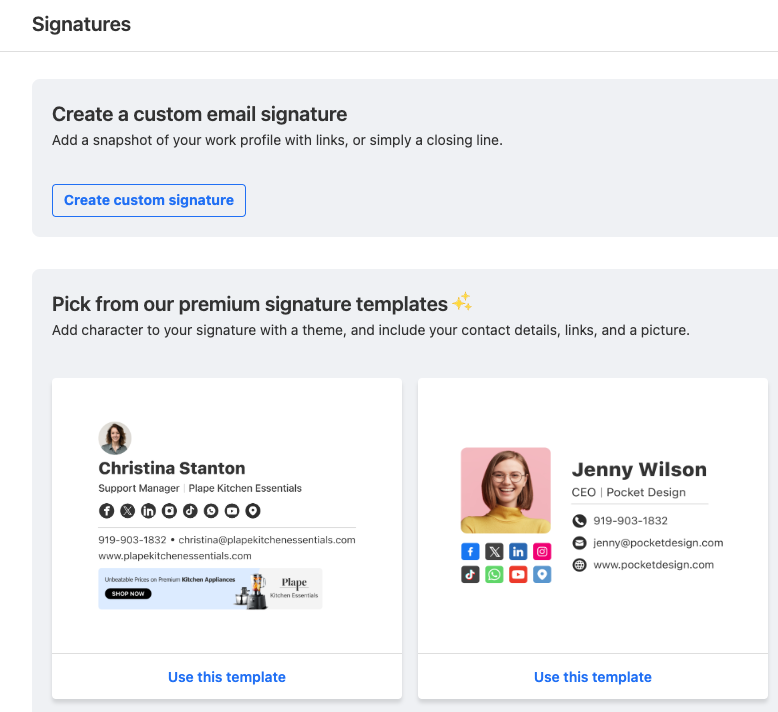
- You can either create a custom signature or use a template:
- To create a custom signature: Select Create custom signature. Enter a name, and then add your desired content to the signature, such as links or a photo. Select Save.
- (Optional) To use a template: Select one of the available premium signature templates. Fill out your details, add relevant social media links, and upload a profile picture or logo. Then, select Create signature.
Note: Signature templates are only available to Ultra plans. Upgrade my email plan
You’ll see your signature listed on the Signatures page. You can choose which signature, if any, that shows for new email messages and replies/forwards.