Applies to: Webhosting (cPanel)

Webhosting (cPanel) Hilfe

Wir haben die Seite für Sie so gut wie möglich übersetzt. Sie können sie sich aber auch auf Englisch ansehen.

Ändern Sie mein primäres FTP-Passwort in Web Hosting (cPanel)

You need your FTP login and password to upload files to your Web Hosting (cPanel) account with an FTP app. This login and password are the same as your cPanel login and password.

When we set up your Web Hosting (cPanel) account (also known as "provisioning"), we generated a cPanel login and password to set up cPanel for your account. You can't change your cPanel login, and we don't show you the password for security reasons. Follow these steps to change your cPanel password to something you know.

Hinweis: Durch diese Schritte wird das Passwort für den "primären" FTP-Benutzer geändert - das sind Sie als Kontoinhaber. Wenn Sie andere FTP-Benutzer wie Ihren Webdesigner / -entwickler hinzugefügt haben, können Sie deren Anmeldeinformationen bearbeiten .

  1. Gehen Sie zur Ihrer GoDaddy -Produktseite .
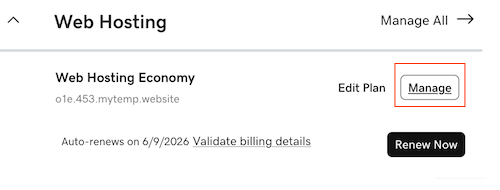
  2. Wählen Sie unter Webhosting neben dem zu verwendenden Web Hosting (cPanel) -Konto die Option Verwalten .
    Wählen Sie Verwalten
  3. In the account Dashboard, select the Settings tab
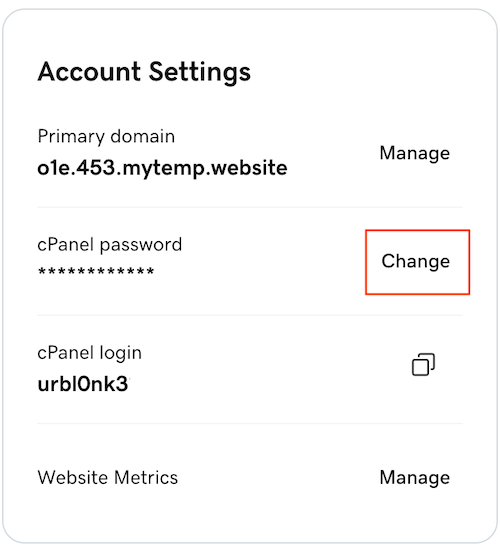
  4. Under Account Settings next to your cPanel Password select Change.
    select change
  5. Enter a new Password, and then select Change Password.

Ähnlicher Schritt

Weitere Informationen

  • To sign directly in to cPanel, go to https://myDomainName/cpanel, where "myDomainName" is your domain with its .tld, like coolexample.com. You'll need your cPanel login and new password.
  • Sie können eine FTP-App (wie FileZilla) verwenden, um mit diesem Benutzernamen und Passwort eine Verbindung zu Ihrem Hosting-Konto herzustellen .