Load a roll of printer paper
The GoDaddy Smart Terminal Duo and GoDaddy Smart Terminal Flex are equipped with a built-in thermal printer. Your Smart Terminal comes with printer paper to get you started. You can order additional paper rolls through your GoDaddy Payments Dashboard.
You can also connect a compatible external receipt printer to your GoDaddy Smart Terminal.
Load a roll of thermal printer paper into your Smart Terminal Duo.
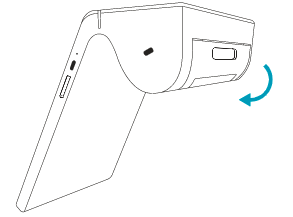
- Open the latch on the printer compartment of your GoDaddy Smart Terminal Duo.
- Unwrap a printer roll and insert it in the compartment with the paper rolling down from the top and the end of the roll facing away from the compartment.
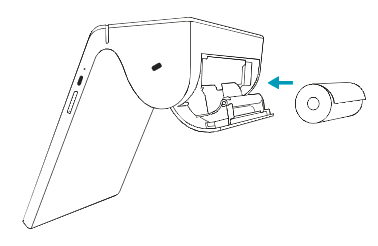
- Close the latch.
- Print a test receipt:
- Tap Settings on the second page of the home screen.
- Tap Accessory.
- Under Printer, tap Test Printer.
- Tap Print Test.
- If the test receipt prints successfully, tap Yes. If the receipt didn’t print, tap No to manage your printer settings.
Load a roll of thermal printer paper into your GoDaddy Smart Terminal Flex.
- Open the paper roll cover at the top of the device.
- Insert the paper roll into the compartment and pull the roll until about two inches of paper extends from the top of the device.
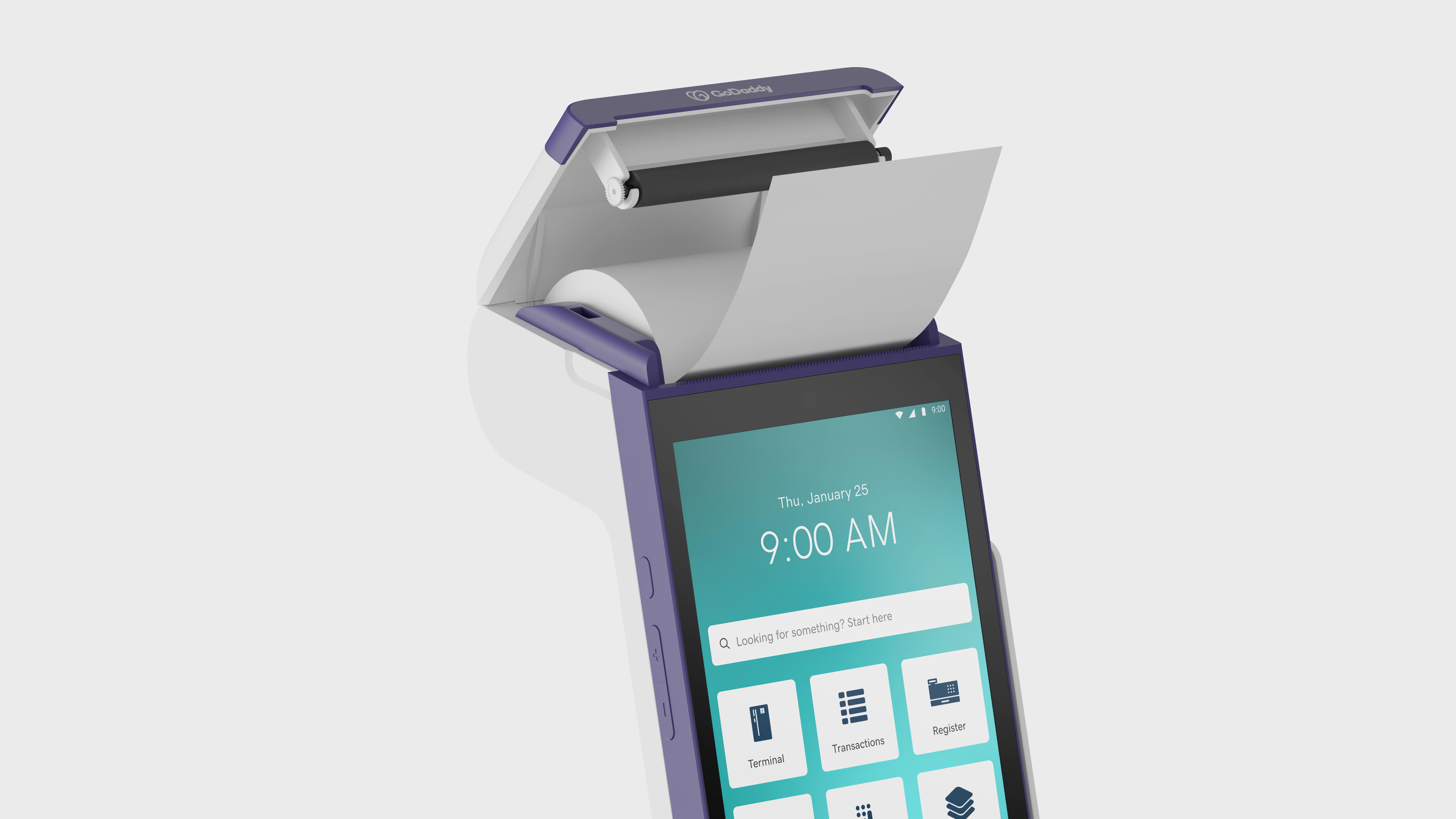
- Hold the end of the paper and close the lid cover until you hear a "click."
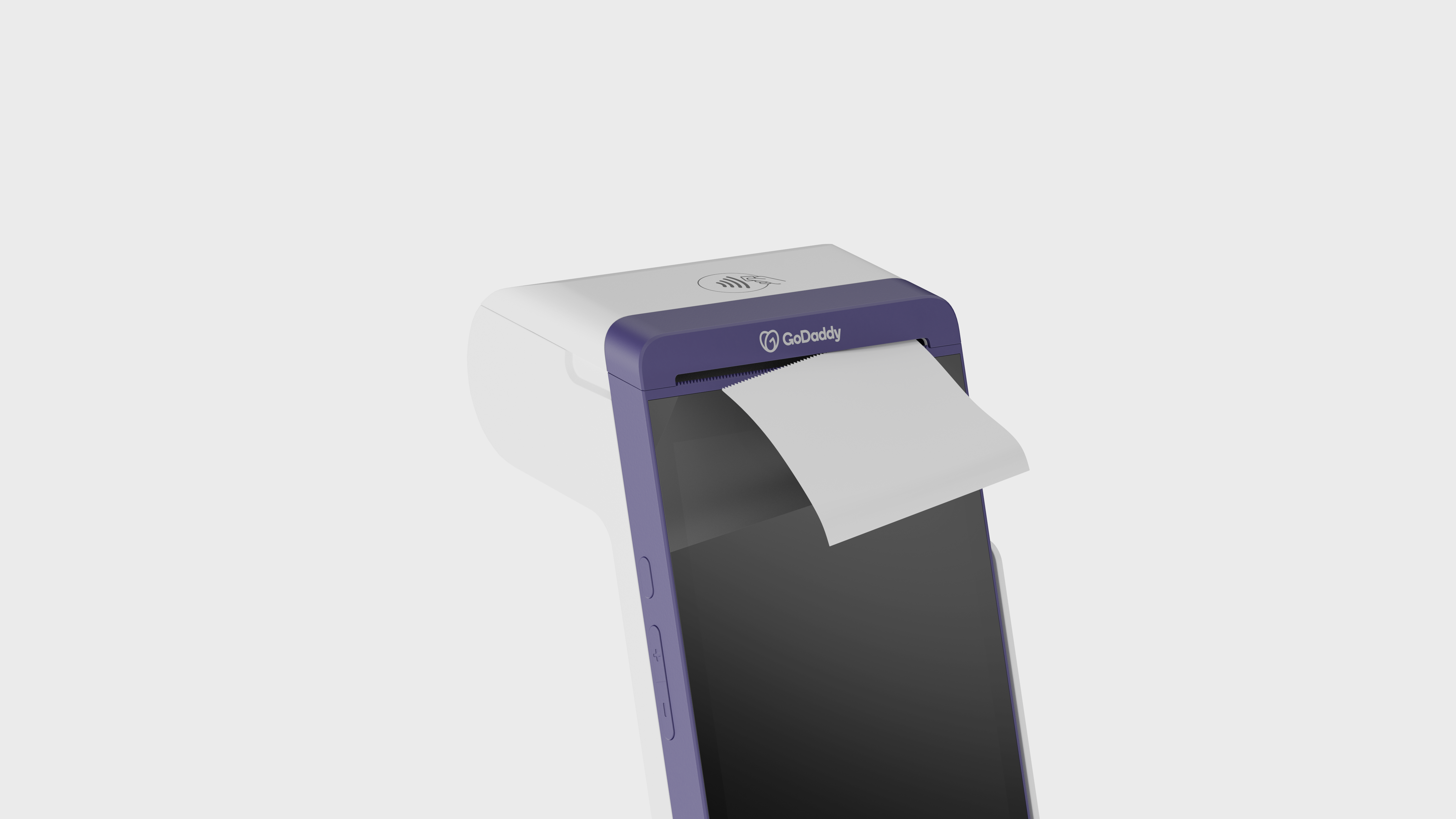
- Remove the excess paper by tearing along the serrated edge.
- Print a test receipt:
- Tap Settings on the second page of the home screen.
- Tap Accessory.
- Under Printer, tap Test Printer.
- Tap Print Test.
- If the test receipt prints successfully, tap Yes. If the receipt didn’t print, tap No to manage your printer settings.
The steps below refer to Star Micronics TSP-100 and TSP-143 series external printers. For help with different models, please refer to your printer’s instruction manual or manufacturer.
- Press the power button to turn the printer on.
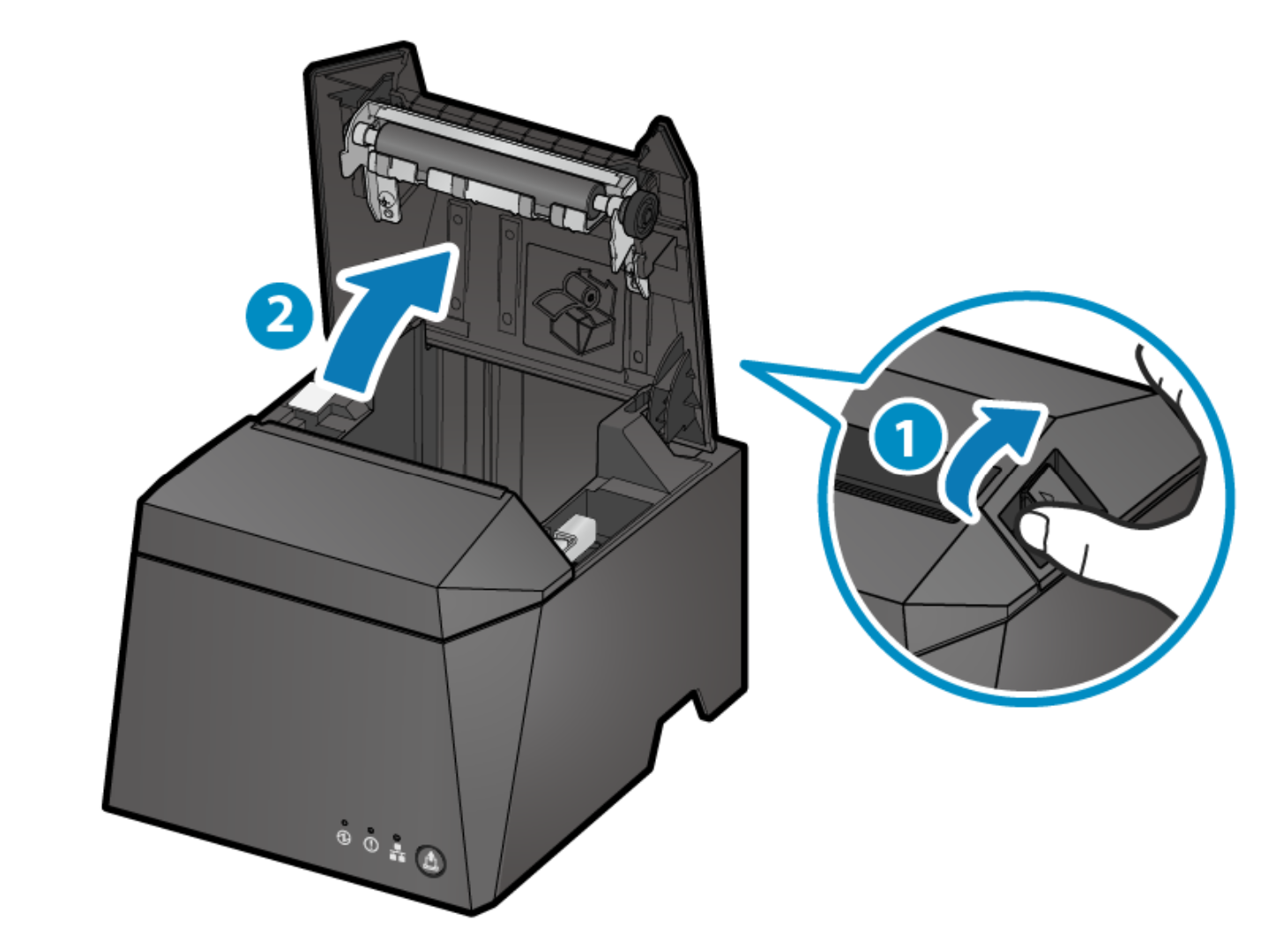
- Press the lever next to the paper slot to open the paper roll cover.
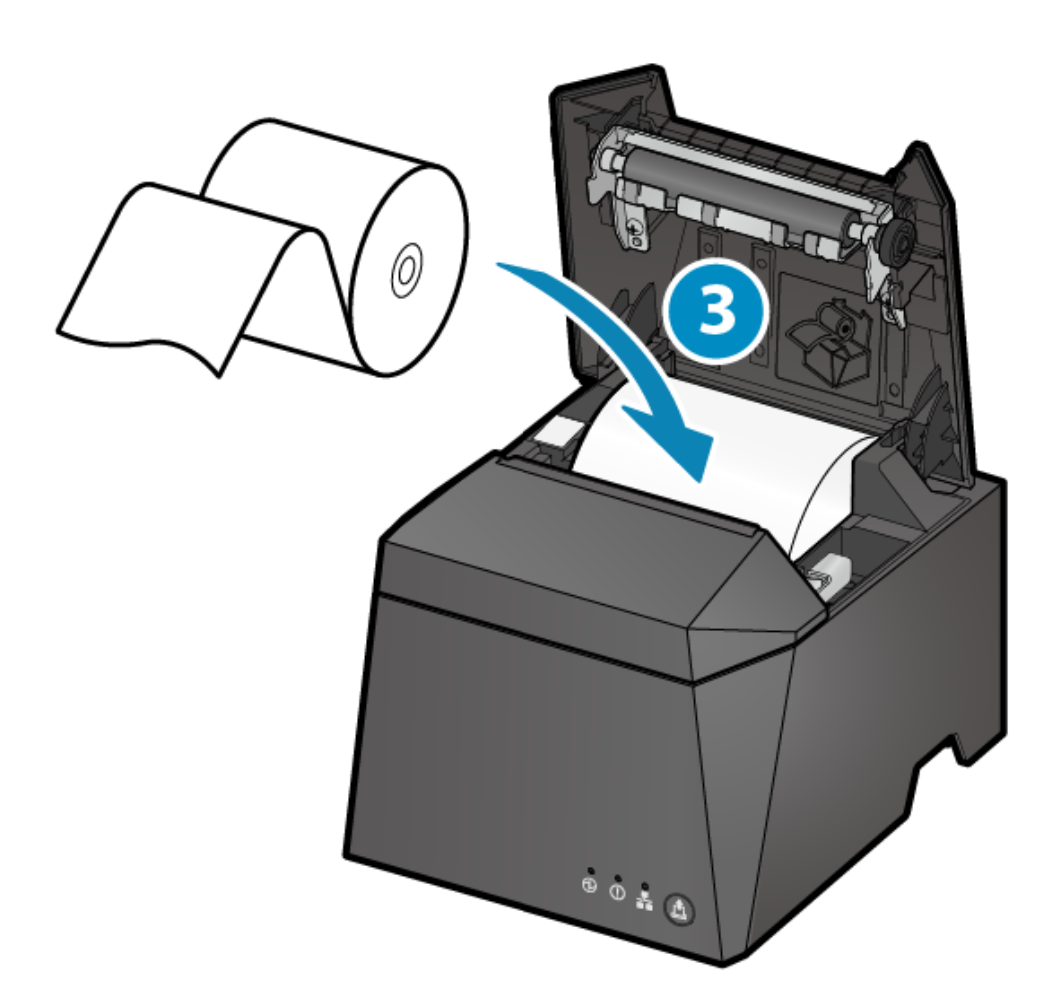
- Insert the paper roll into the compartment and pull the roll until about 2 inches of paper extends towards the front of the printer.
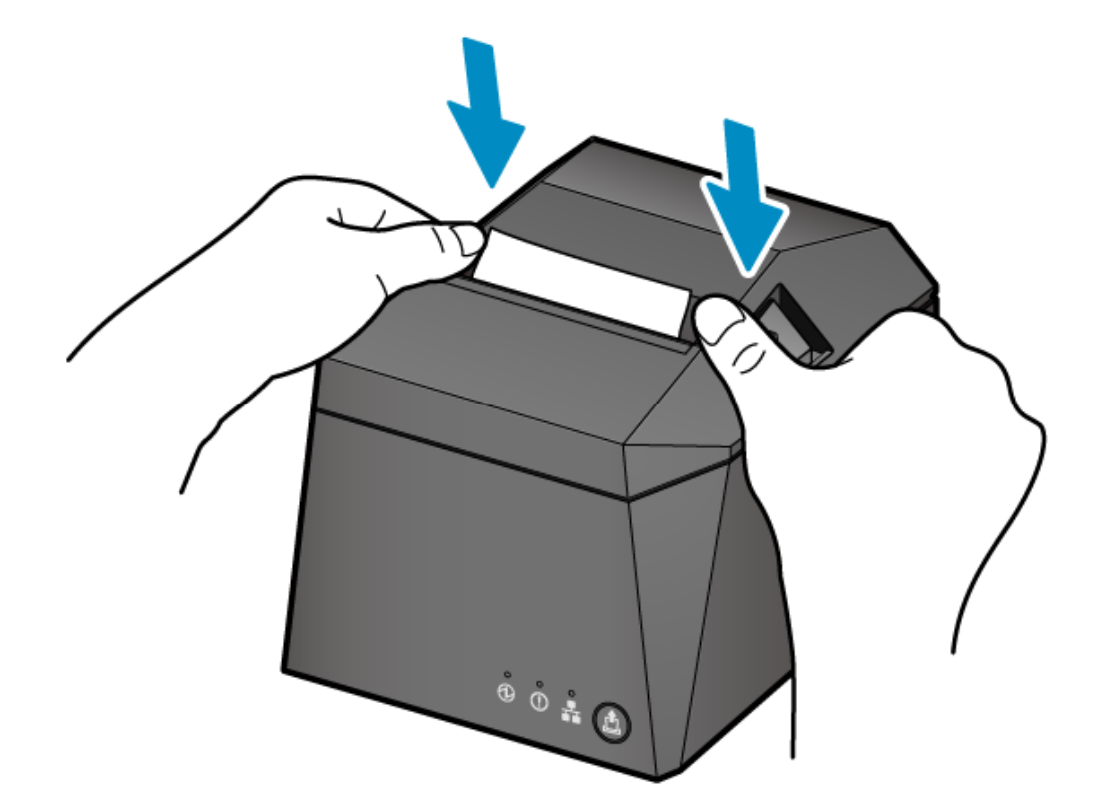
- Press both sides of the printer roll cover down to close the compartment.
- Print a test receipt:
- Tap Settings on the second page of the home screen.
- Tap Accessory.
- Under Printer, locate the external printer and tap Test Printer.
- Tap Print Test.
- If the test receipt prints successfully, tap Yes. If the receipt didn’t print, tap No to manage your printer settings.
Note: If the receipt is blank, the paper roll is likely inserted upside-down. Reload the paper roll so that it’s oriented as shown above and try printing another test receipt.