Create and print product barcodes
Generate printable barcodes for products in your GoDaddy Payments catalog. Attach the barcodes to your products and scan them when creating orders with a GoDaddy Smart Terminal or GoDaddy Commerce App.
For products with variants (like size or color), a unique barcode is generated for each variant combination.
Note: This feature is currently in limited release, and will expand to all GoDaddy Payments users soon. If you don't see the Barcode Manager option in your product catalog, it's not available to you quite yet.
- Sign in to the Dashboard where you manage your GoDaddy Payments account (use your GoDaddy username and password).
- In the left-nav, select Catalog.
- In the upper-right corner, select Barcode Manager.
Note: When creating a new product, select Create barcode (under Inventory) to access the Barcode Manager.
- Under Create Barcodes, select Add Products. Select all products you want to generate a barcode for, then select Add.
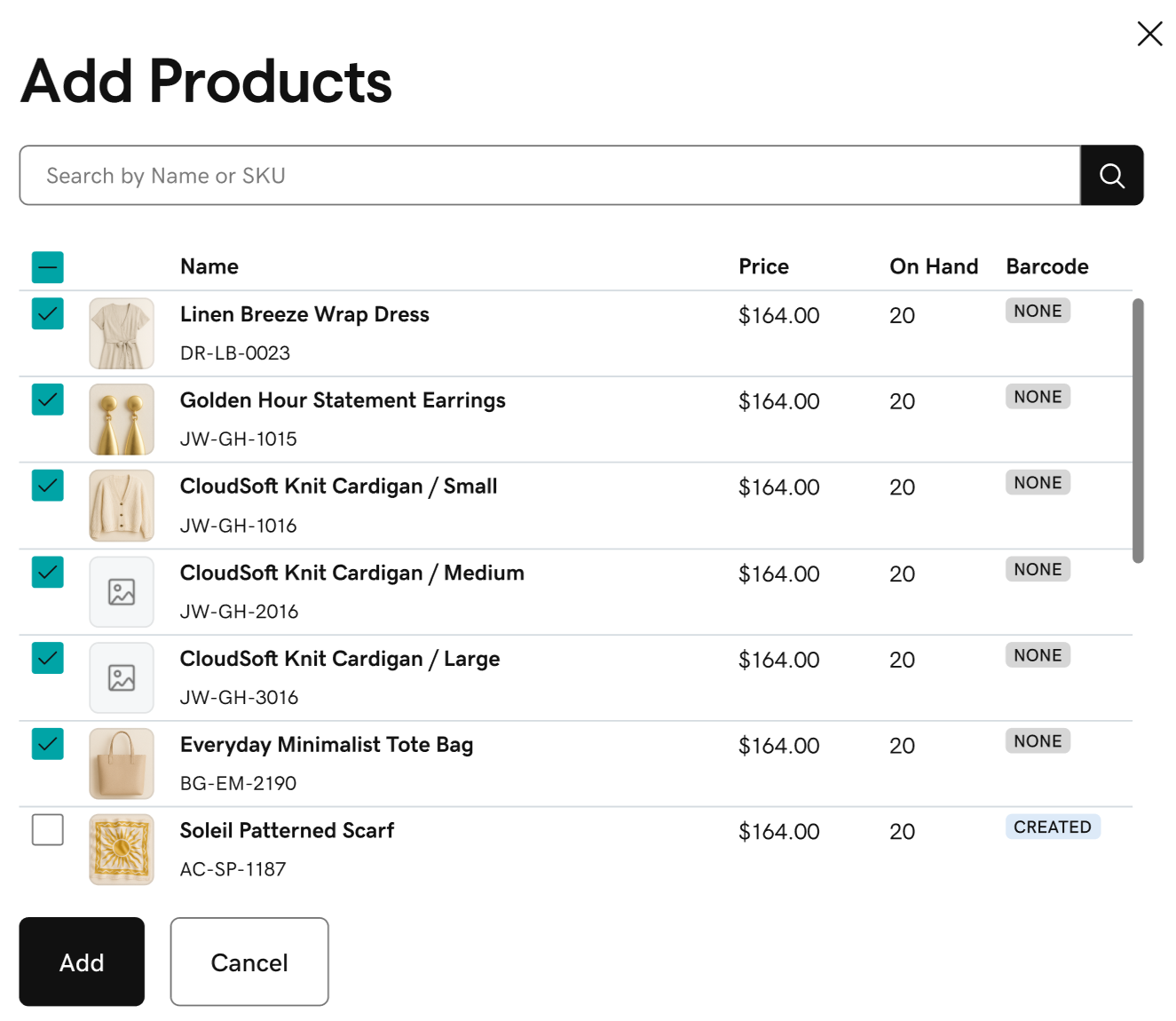
- Select Create Barcodes to generate a barcode for all selected products.
Preview your barcode labels, adjust options as needed, then print, download or email the product barcodes. Barcodes can be printed onto sticky labels or standard paper and scanned at checkout with a GoDaddy Smart Terminal or GoDaddy Commerce app.
- Sign in to the Dashboard where you manage your GoDaddy Payments account (use your GoDaddy username and password).
- In the left-nav, select Catalog.
- In the upper-right corner, select Barcode Manager.
- Select Print Labels.
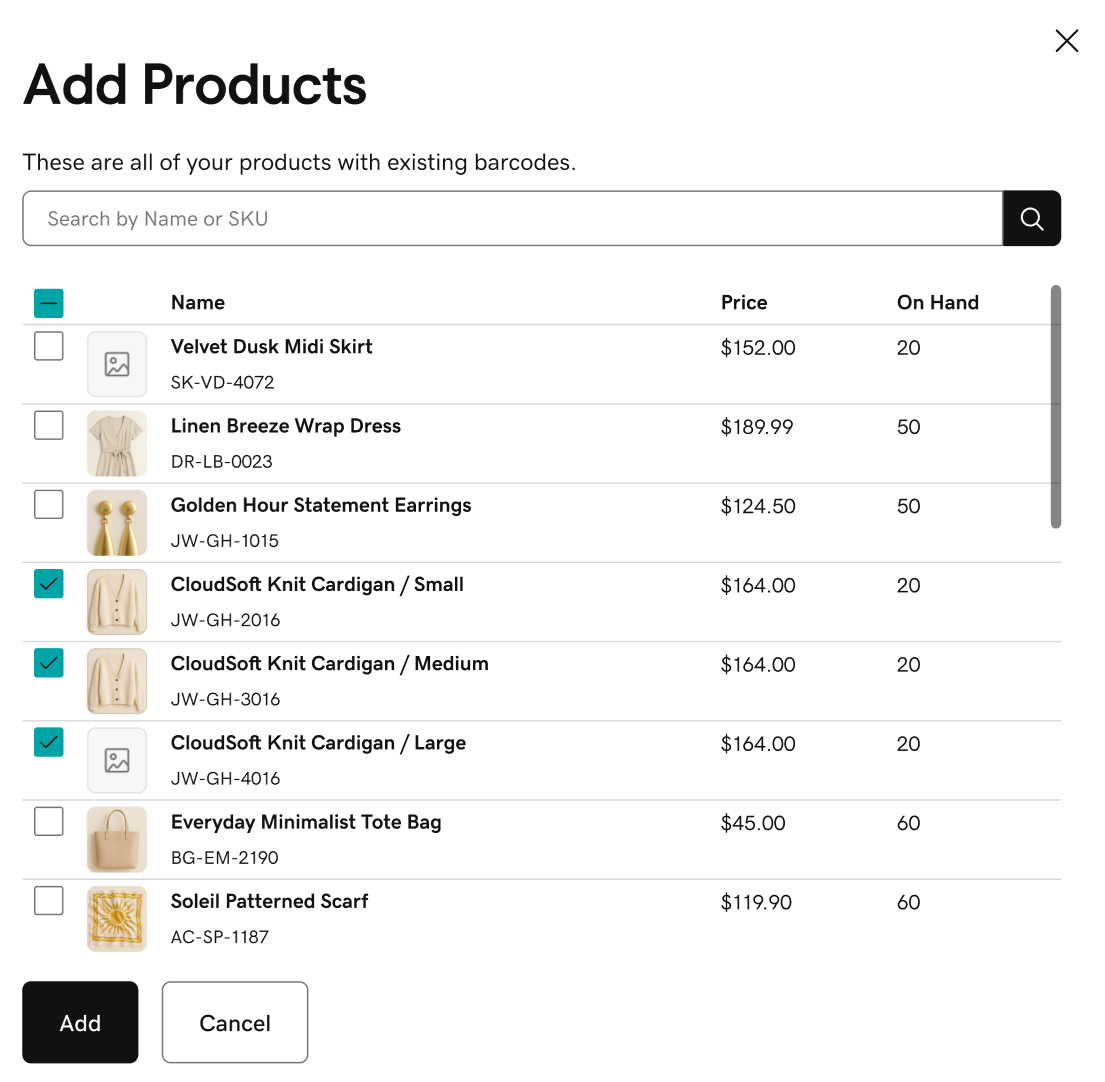
- Select Add Products for a list of all products with barcodes. Select the product barcodes you want to print, then select Add.
- Preview the label and adjust the barcode printing options as needed:
- Label Options: Choose whether to display the product name and price on the barcode and then preview the final label. For multiple products, select Next Product to adjust the barcodes for each selected item.
- Label Template: Avery Standard – 5160 is the recommended size for barcode stickers, but additional options may be added in the future.
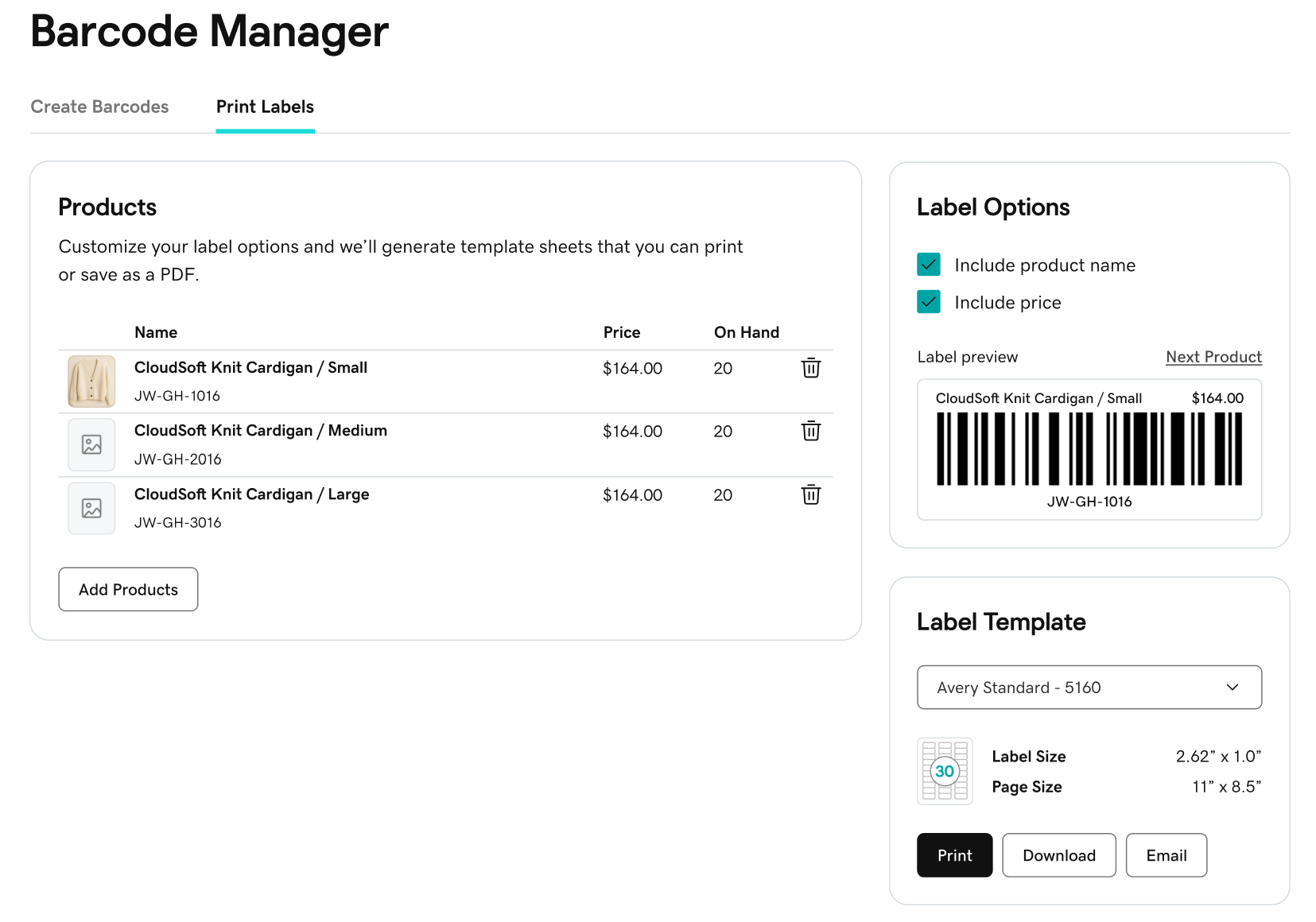
- Select Print to print the barcode labels, select Download to download the labels as a PDF file or select Email to send an email with the barcode file.
Note: When printing, make sure to load your label paper into the printer to correctly align with your label template.
More info
- Add products to the product catalog through your GoDaddy Payments Dashboard, Smart Terminal or the GoDaddy Commerce app.
- Learn how to create orders with a GoDaddy Smart Terminal or Commerce App.
- When creating an in-person order, you can scan barcodes with a compatible barcode scanner, or with the built-in camera on your Smart Terminal or phone.