Downgrade or remove Domain Protection
Domain Protection offers increased security against online threats by sending alerts when changes are made to your domain. You'll no longer receive alerts when changes are made to your domain after removing Domain Protection, and downgrading from Ultimate to Full Domain Protection will remove expiration protection. You can re-add or upgrade Domain Protection later if you change your mind.
- Sign in to your GoDaddy Domain Portfolio. (Need help logging in? Find your username or password.)
- In the Protection Plan column for your domain, select the name of your current Domain Protection plan. You may need to edit your column settings if you don't see the Protection Plan column.
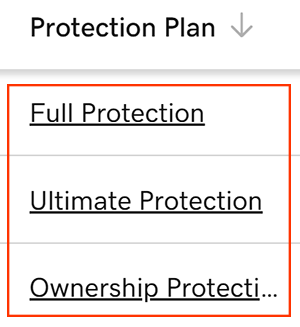
- Choose your new Domain Protection plan from the available options.
Note: Domain Ownership Protection cannot be downgraded, only removed, so you won't see any other Domain Protection options. - Select Confirm Downgrade, and then select Continue & Verify. Verification is not required when downgrading from Ultimate to Full Domain Protection.
- Verify your identity by entering the unique code we sent to you. If you've had 2-step verification (2SV) turned on for at least 24 hours, enter the code we sent via SMS, or enter the code from your authenticator app. Otherwise, enter the one-time password we sent to the email address on your GoDaddy account.
- Select Verify Code to finish downgrading or removing Domain Protection.
It can take up to 90 minutes for changes to be reflected in your account.
Related steps
- Review your domain contact info to ensure your details are accurate.
- Set up 2-step verification for the best security on your domains and account.
More info
- Review our refund policy for details on refunds.
- Downgrading your domain protection does not cancel your domain name.